
Writing screen
The optional private editor writes server Markdown. Desktop shows file tree, source and rendered preview. The public showcase has no editor service; screenshots use fictional accounts/content in the actual local V2 interface.
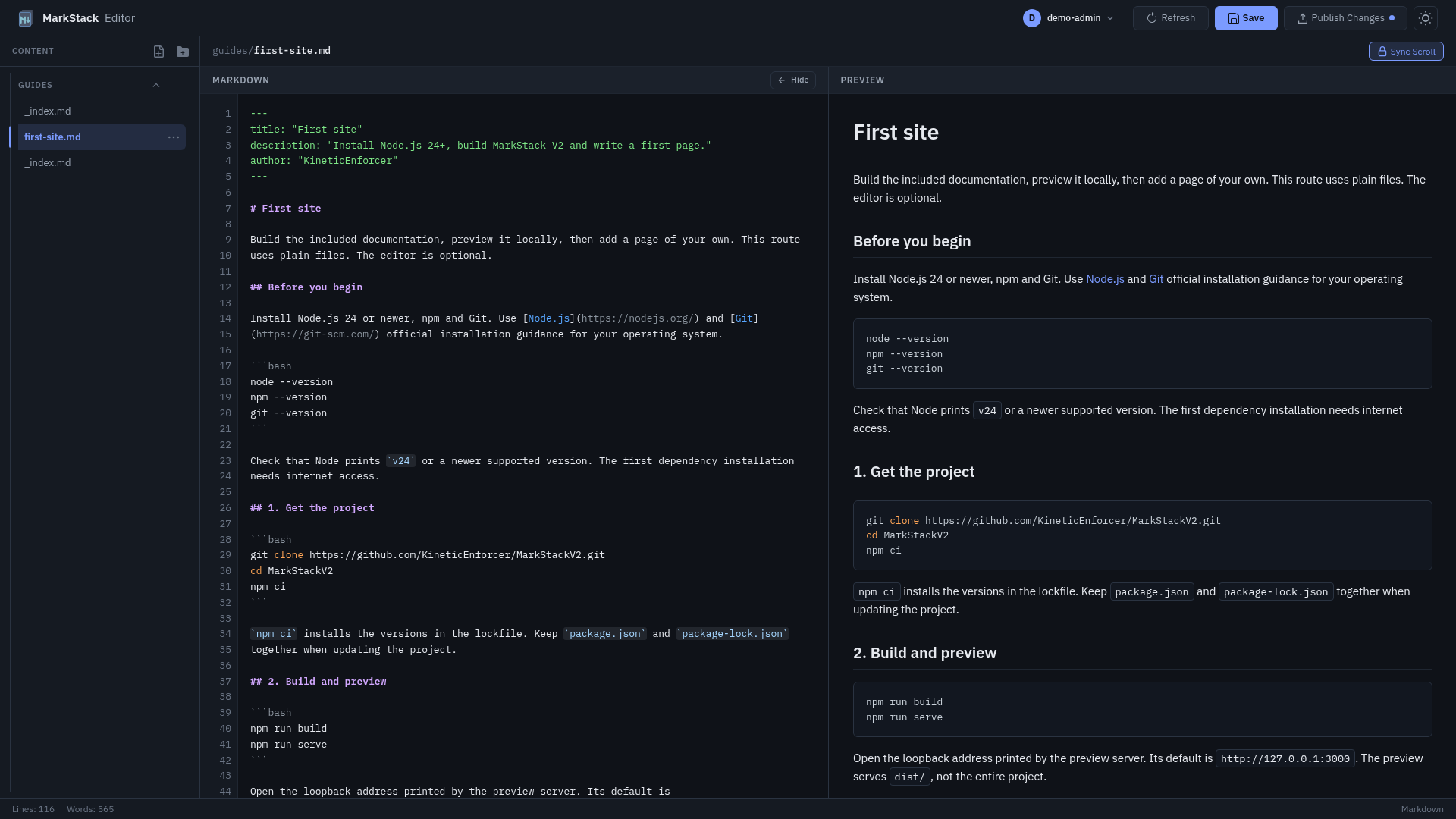
The screenshot is a writing interface, not a production deployment or proof of reader-host access controls.
Screen map
| Area | Purpose |
|---|---|
| Files | Authorized server source tree |
| Source path | Exact current relative Markdown path |
| Markdown pane | Plain-text editing with visual highlight and line numbers |
| Preview pane | Rendered body in script-blocked frame |
| Save status | Loaded, unsaved, saving, saved or error |
| Save | Explicit server source write |
| Publish | Administrator-only separate output workflow |
| Account menu | Identity, password, sign-out and Admin as applicable |
| Theme | This browser’s dark/light preference |
Confirm account/path before typing. Similar titles in two folders are different targets. File tree is not generated HTML, reader search or a list of browser drafts. Administrators can see root source; editors only assigned top-level sections and descendants.
A complete writing session
- Sign in to intended private editor and choose an allowed synthetic page.
- Read saved source/title and verify source path.
- Add complete purpose, steps and expected results, not placeholder prose.
- Wait for preview and inspect relevant passage.
- Save and read its final status.
- Reopen/compare intended server text without losing newer edits.
- Administrator builds/publishes after review; host deployment is separate.
- Verify final reader/deep URL/search/media.
Preview text is not source-save confirmation. A local save is not publication. Drafts and saving owns late requests, recovery and concurrent-writing limits; Save, publish and deploy separates layers.
Pane and keyboard controls
| Control | Behavior |
|---|---|
| Hide editor | More preview space; does not save |
| Show editor | Restores Markdown pane |
| Sync Scroll | Approximate relative-height alignment |
| Ctrl+S/Cmd+S | Save current source |
| Tab | Normal focus navigation, not source indent |
| Source scroll | Line/highlight backdrop follows |
| Theme toggle | Browser preference, preview/diagrams repaint |
Scroll synchronization compares scroll percentages, not semantic source lines. Tables, diagrams and long code blocks can distort alignment. Turn it off to inspect independent passages. Word/line counts are editing aids, not build page totals or review completeness.
The textarea is not a full IDE: no promised code formatting, shared cursor, merge, Markdown toolbar insertion or automatic server autosave. Fenced commands remain documentation, not executed programs. Review visible focus before a keyboard shortcut.
Preview pipeline and differences
| Feature | Difference |
|---|---|
| Markdown and tables | Both render |
| Code | Local preview versus build highlighter |
| Alerts | Both support five named alert types |
| Mermaid | Both use local strict-mode lazy library |
| Footnotes and tasks | Reader has extra build plugins |
| Heading furniture | Reader has generated IDs and links |
| Navigation and search | Generated reader, not preview |
| Link clicks | Blocked in preview; navigate in reader |
Alert types are NOTE, TIP, IMPORTANT, WARNING and CAUTION.
Source frontmatter is stripped by preview’s simple leading --- regex. Build uses its dedicated parser with broader supported forms. A ---yaml, BOM or unusual metadata delimiter can therefore preview differently. Validate the final build rather than diagnosing all frontmatter from rendered editor body.
Raw HTML preview follows actual server configuration. Even when allowed, preview sits in sandbox="allow-same-origin" without allow-scripts and restrictive frame CSP. Scripts/event handlers do not run as authored preview code. Parent controls fill the frame and render diagrams. This protects preview script execution; it is not permission to place secrets or trust arbitrary HTML/styles/media.
Preview links are intercepted instead of navigating its frame. Media can load from permitted data/blob/HTTP/HTTPS locations. A good-looking image can still contact a remote host; typing a path does not upload bytes. Relative URL context can differ from title-derived reader route and baseUrl. Check generated reader assets/links independently.
Unknown code language falls back to escaped plain code rather than executing it. Mermaid syntax error produces an error box. Broken diagram loading and syntax are separate failures; preserve source/error and inspect local resources. Changing theme rerenders visible diagrams, but local font/library presence is not proof every authored remote dependency is offline.
File tree and refresh
Expand physical folders and select exact Markdown. Refresh tree after other writers/Git changes; it refreshes the listing, not a guaranteed merge/reload of the currently edited text. Loaded file can remain stale while tree is current.
Selecting another file with unsaved text asks to discard current changes. That differs from Keep draft/Save-and-leave departure. Use the right choice and preserve wanted work before switching. Permissions are enforced server-side even when direct source path is known.
New file/folder and row item menus use authorized locations. Keyboard/context controls support tree actions; file operations remain protected/destructive as appropriate. File management covers normalization, creation, rename, deletion and source-versus-reader consequences.
Phone layout
| Control/state | Result |
|---|---|
| Edit / Preview | One visible pane, no implicit save |
| View arrow keys | Keyboard pane selection |
| Files | Modal drawer over editor |
| Choose page | Closes drawer after selection behavior |
| Close options | Close drawer and return focus |
| Drawer Tab | Focus cycles within visible drawer controls |
| Rotation | Drawer closes/recomputes layout |
An open drawer makes background header/content inert. Escape closes it only when another modal/context menu is not taking precedence. Check selected file and Save status after drawer choices; closing it is not confirmation of server write.
Visual viewport height adjusts when a phone keyboard changes available space. Dialogs can scroll and retain controls; a reduced-height emulation is useful but not physical Safari/keyboard validation. Test actual rotation, keyboard-open, focus, zoom and close actions on target devices before claiming production mobile readiness.
Troubleshooting the screen
| Symptom | Inspect |
|---|---|
| Empty tree | Account grants and content path; not reader host |
| Missing old page | Current tree, source rename or delete and authority |
| Unsaved after Save | Newer typing or error, not just button click |
| Preview mismatch | Parser and plugins, raw HTML, media URL and rendering |
| Diagram error | Syntax versus resource loading |
| Wrong scroll | Disable percentage sync and inspect directly |
| Stale source | Coordinate, reopen and compare, no merge guarantee |
Keep errors and source private when content is confidential. Do not paste users files or credentials into public support. An administrator test cannot certify editor boundaries; run allowed and denied tests with synthetic content and writer role.
Validation limits distinguishes local screenshots/regression behavior from production access, device, service, TLS and recovery checks.